

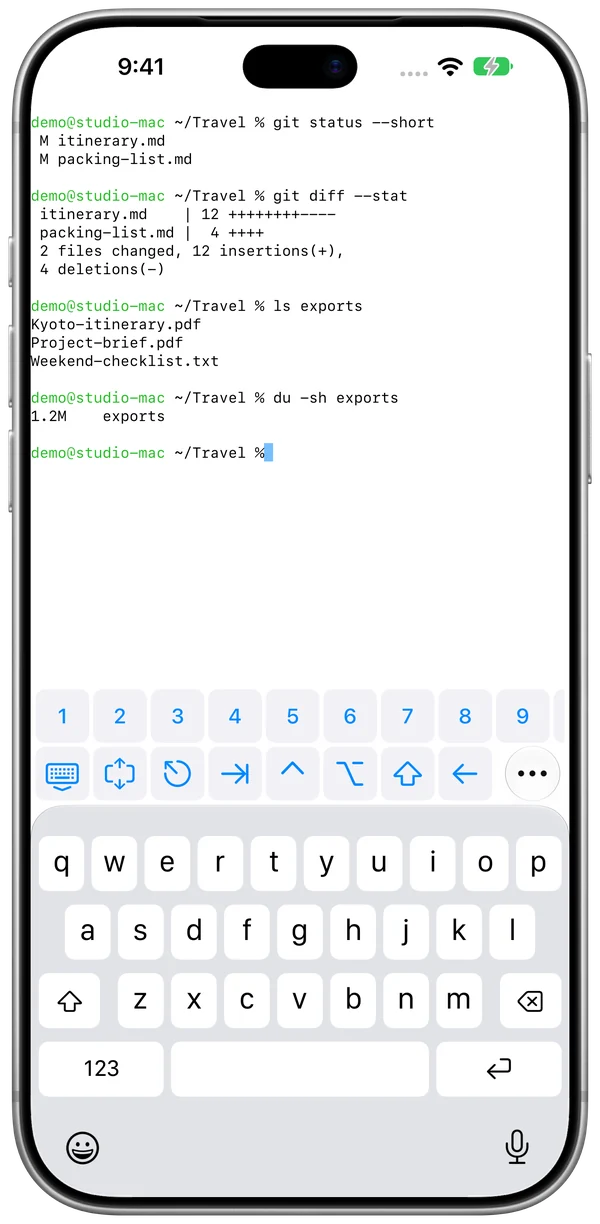
SSH Terminal
A command away.
Connect with a password or Ed25519 key. Numbers, modifiers, and navigation keys stay close to the native keyboard.
Pro adds custom key rows and saved snippets.
For iPhone, iPad & iPhone Duo
Open your desktop. Run a command. Grab a file. Everything you need to get back to your Mac, wherever you have a connection.
One Mac. Free forever.
Lifetime Pro: $9.99 once. No subscription. Compare plans
Available on the App Store · iOS / iPadOS 26+
Free to download · Optional one-time upgrade · Local prices may vary.
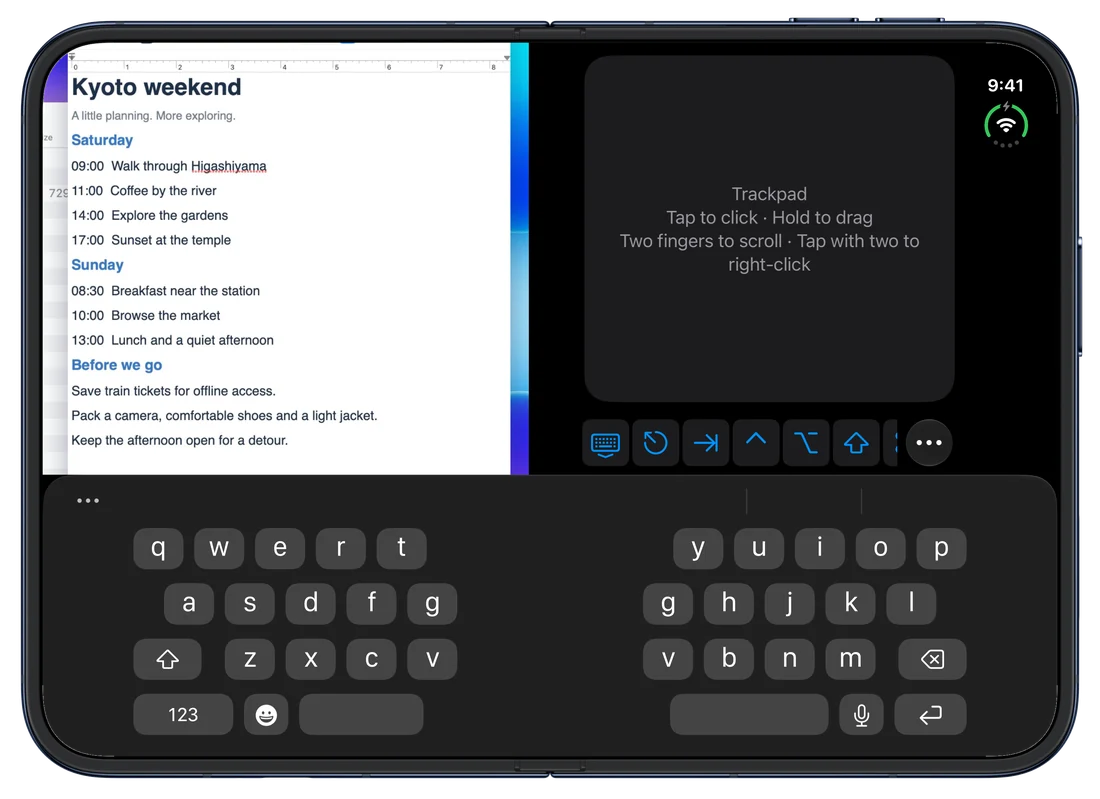
 iPhone Duo Room for both.
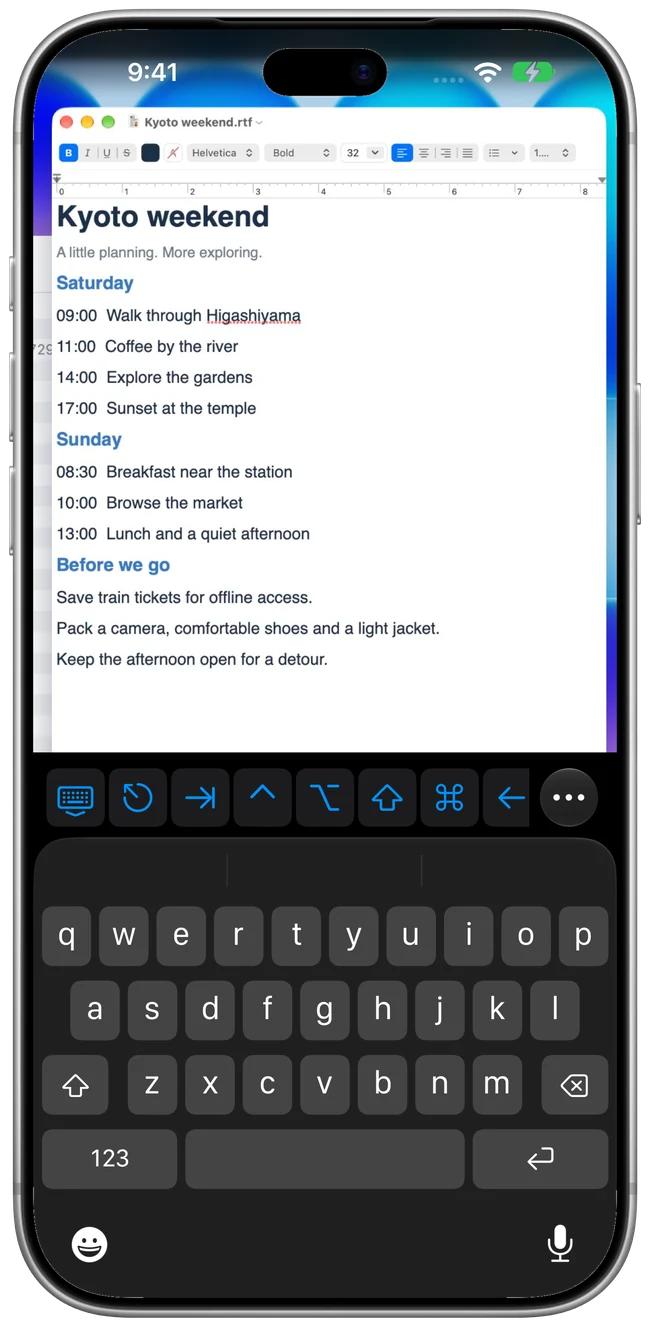
iPhone Your Mac, in reach.
A familiar Mac. A few more possibilities.
A quick check from the sofa. A command from the train. That file you left at home.
Your screen, pointer, and familiar Mac shortcuts.
Take a closer lookAn independent SSH shell, ready when you are.
Open up a shellControl the Mac you can already see across the room.
Make yourself comfortableBrowse your Mac and move individual files over SFTP.
Find what you need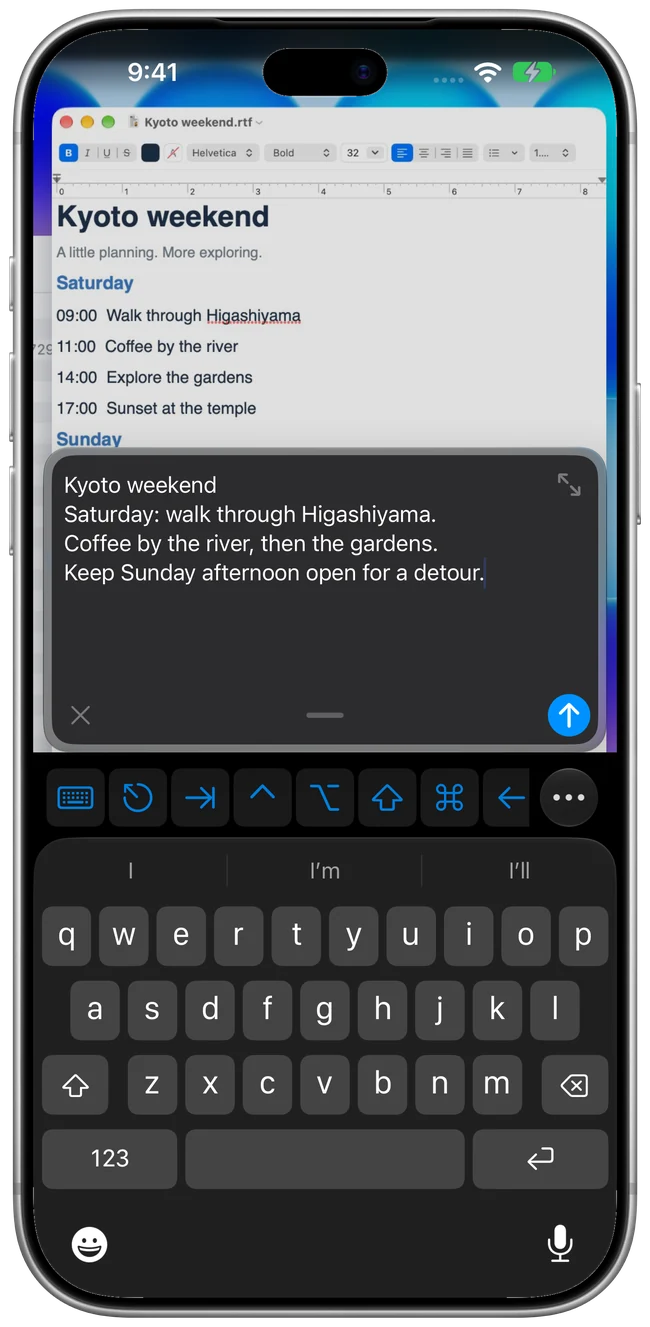
Desktop & Compose Text
Check a document, click through an app, or finish that thought. Built-in macOS Screen Sharing brings your desktop to you, with the controls a Mac expects.
Desktop and input travel through an encrypted SSH connection.
First-class iPhone Duo support
Made for the space you have. Book and Tabletop give your Mac content and your input controls their own place.
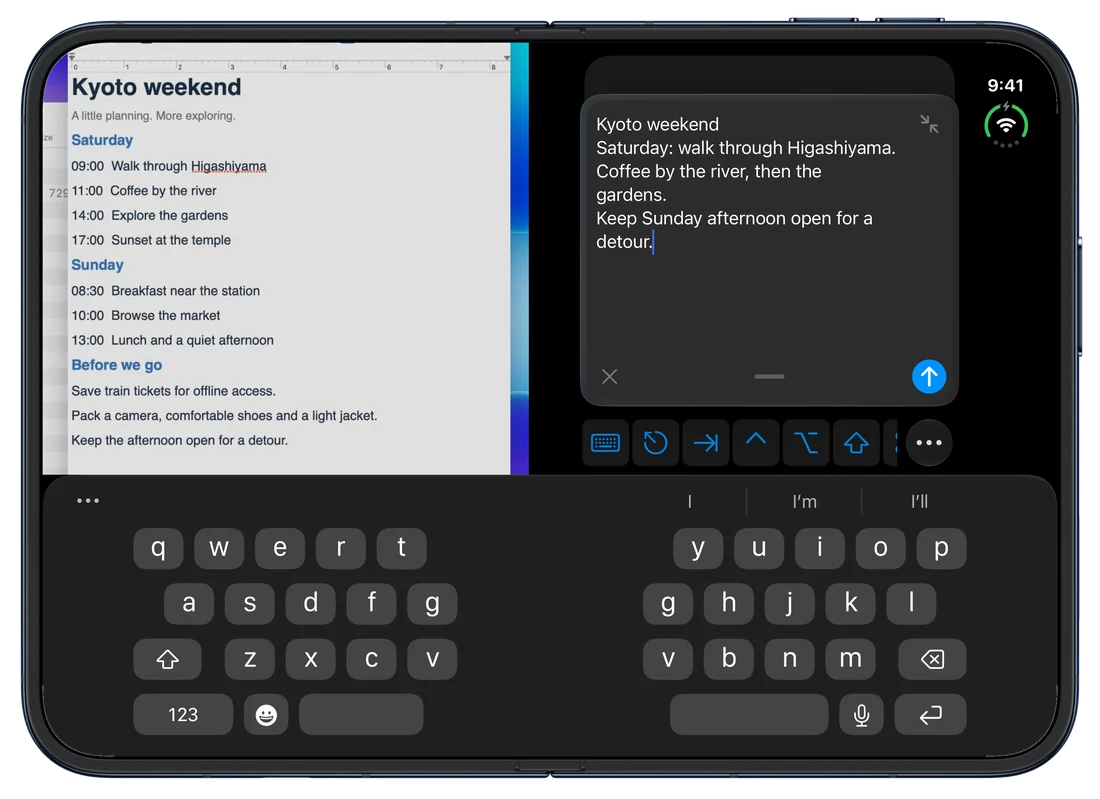
Keep desktop or Terminal content alongside your input pane. Compose Text uses the available space for your draft and editing controls.
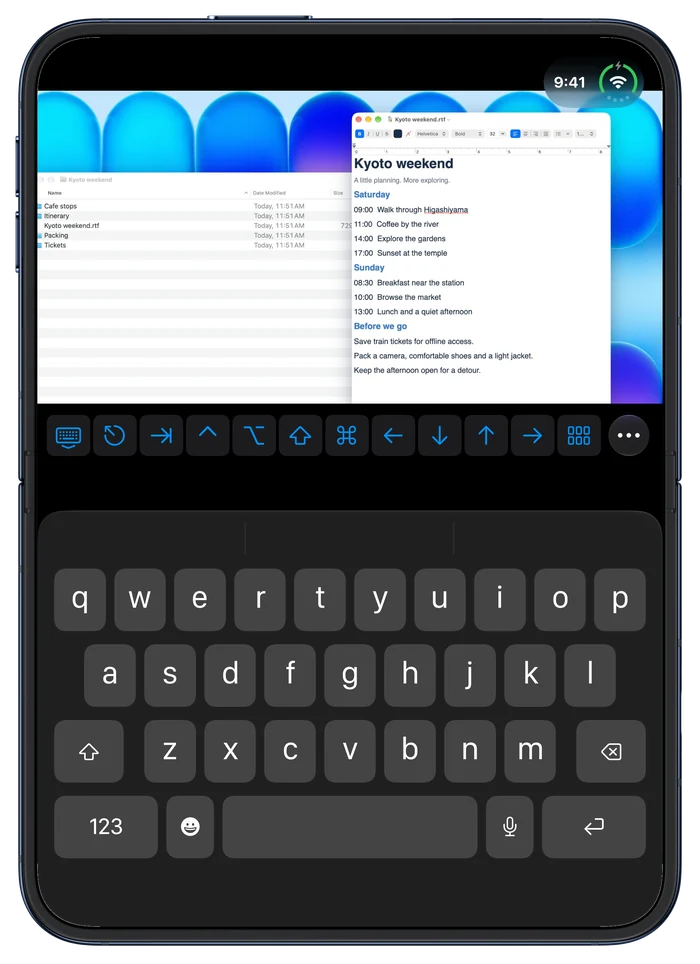
Content and input occupy the regions around the active fold. Change posture and keep your tools within reach.
Native app layouts shown in matching device frames. Explore device layouts
Go straight to what you need.
You don’t have to open the desktop to get something done.
Connect with a password or Ed25519 key. Numbers, modifiers, and navigation keys stay close to the native keyboard.
Pro adds custom key rows and saved snippets.
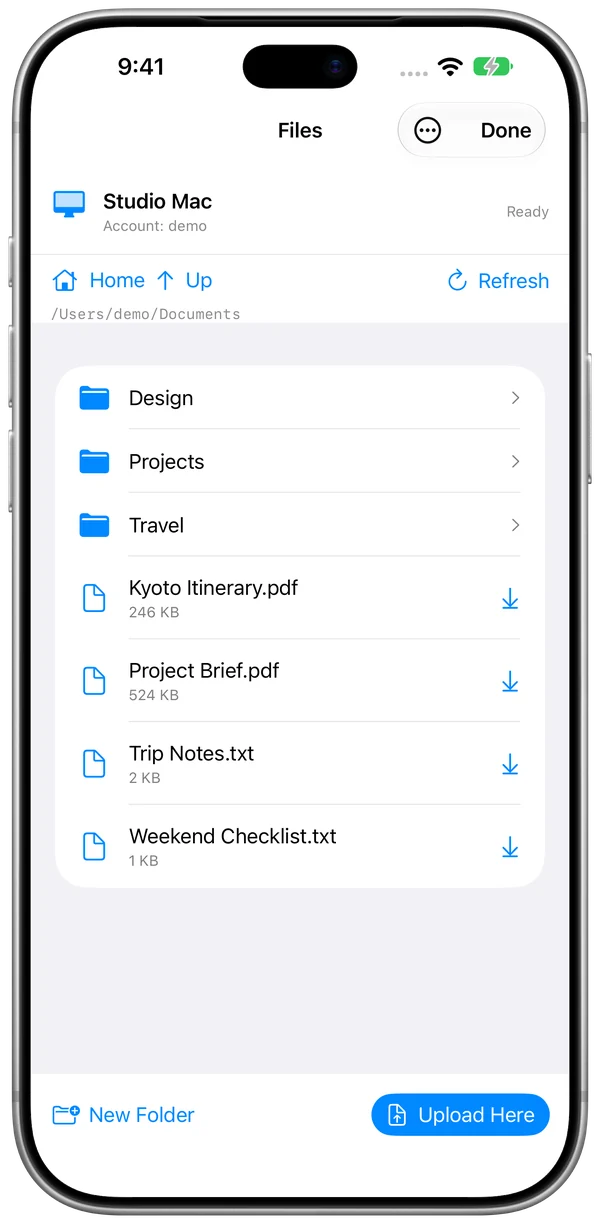
Browse folders, download a file, or upload one from your device. Files connects over SSH and is included in Free.
Individual-file transfers. Folder transfers aren’t supported.
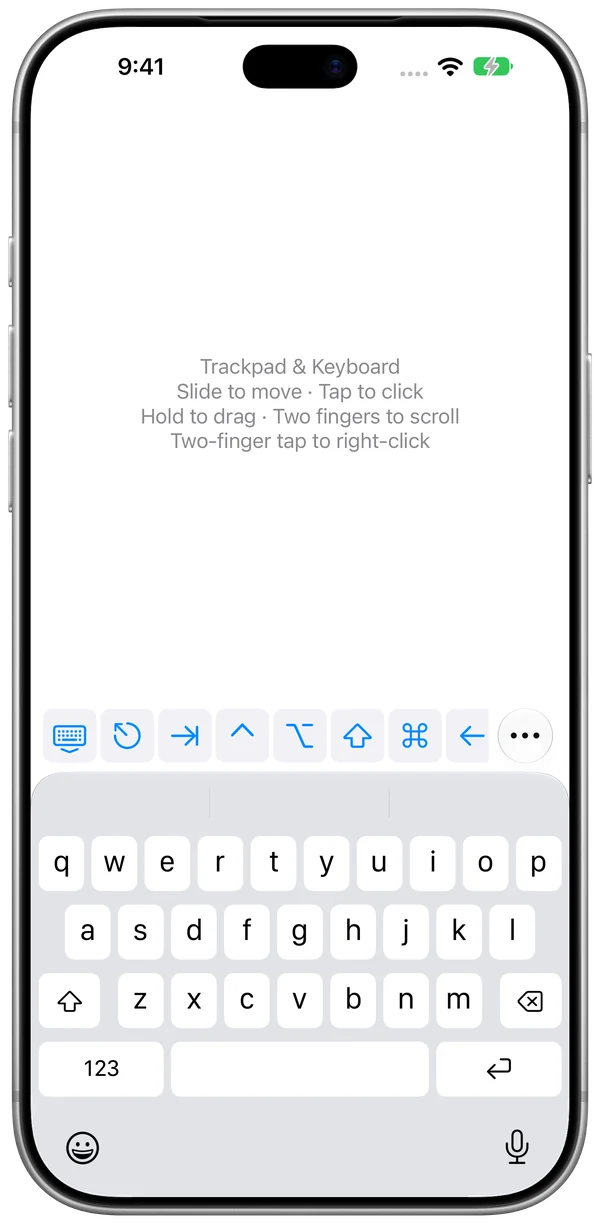
Turn your iPhone or iPad into a trackpad and keyboard for a Mac connected to a TV or a display across the room.
Tap, drag, scroll, and adjust pointer speed.
At home on iPad, too.
Give your desktop more space. Use portrait or landscape, open Terminal, or bring up the native keyboard when it’s time to type.
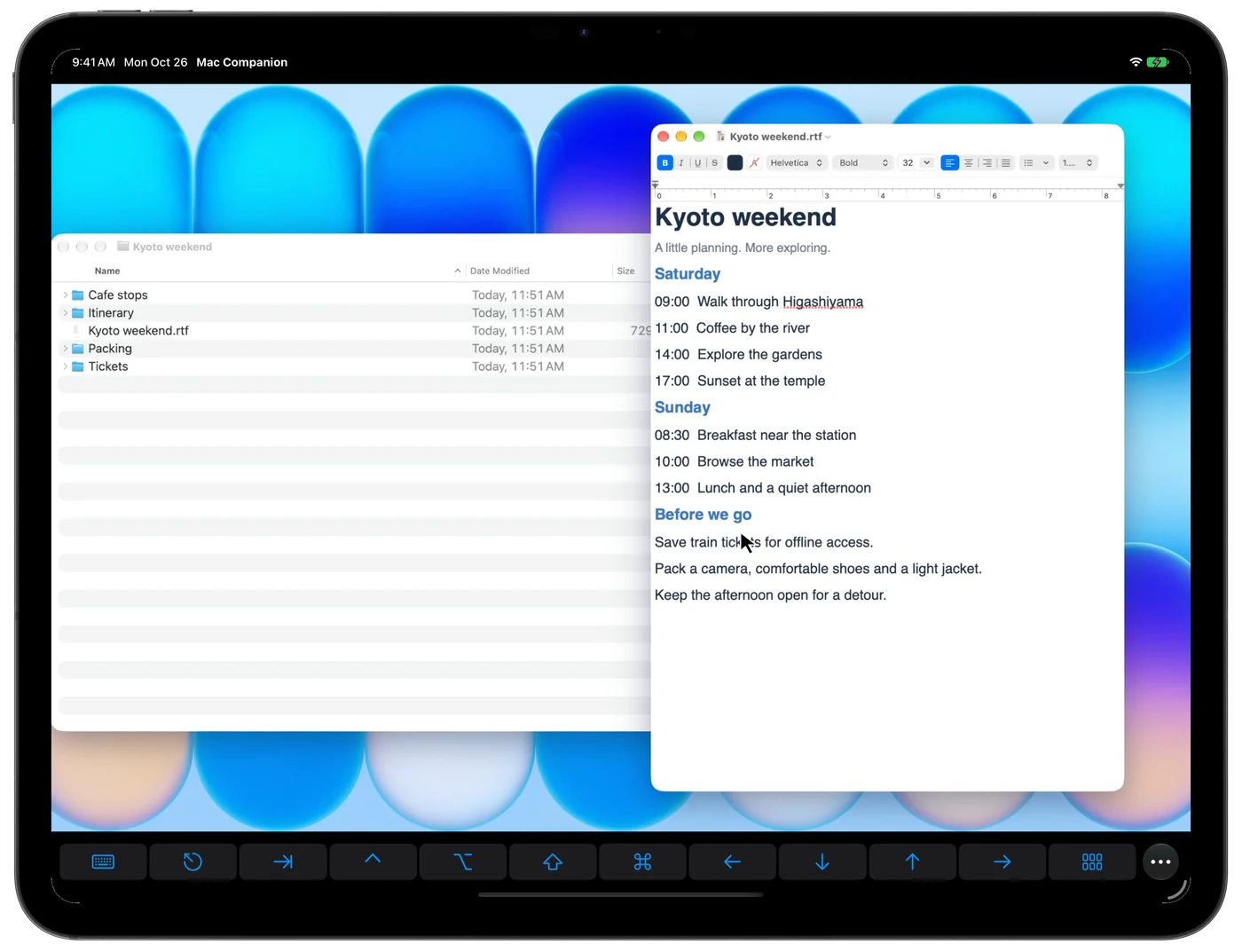
The Mac half is already there.
Connect to the services built into macOS. There’s no Mac Companion server or helper to install.
In System Settings → General → Sharing, enable Remote Login. Enable Screen Sharing for Desktop and Trackpad & Keyboard, too.
Save its local or private VPN address. Keep multiple addresses for the same Mac, in the order you prefer.
Verify your Mac’s SSH fingerprint and sign in with your Mac account. Choose Desktop, Terminal, Trackpad & Keyboard, or Files.
Use a trusted local network, or your own private VPN such as Tailscale on both devices. Mac Companion doesn’t provide a VPN or public relay. Follow the setup guide
Useful from day one.
Your everyday essentials don’t expire. Add more Macs and make the controls your own with a one-time Pro upgrade.
$0 forever
One saved Mac. All the essentials.
$9.99 once · U.S.
Everything in Free, plus more ways to work.
Start the trial when you choose. It won’t renew or charge automatically. Your free features stay after it ends.
Free to download. Lifetime Pro is an optional one-time in-app purchase with no subscription. Local prices may vary; the App Store shows your price before purchase.
Before you connect.
The essentials, right here. For setup details and troubleshooting, visit Support.
Yes. The free plan includes one saved Mac, Desktop, Trackpad & Keyboard, basic SSH Terminal, and Files over SFTP, with no time limit. You don’t need to start a Pro trial. After a trial ends, the free features remain available.
Pro adds multiple saved Macs and named SSH keys, SSH key installation, custom remote quick actions, custom Terminal key rows, and saved text snippets. The U.S. price is $9.99 once, with no subscription. You can choose a 14-day Pro trial that doesn’t renew or charge automatically.
No Mac Companion app or helper. Enable built-in Remote Login for every mode, and Screen Sharing for Desktop and Trackpad & Keyboard. Sign in with your Mac account. See the setup steps.
Yes, when your device can reach your awake Mac through a private VPN such as Tailscale. Mac Companion doesn’t supply a VPN or relay. Don’t expose Screen Sharing directly to the internet. Set up your connection.
Book places desktop or Terminal content beside the input controls. Tabletop separates content and input around the active fold. Compose Text keeps its draft and editing controls in an available pane as the layout changes. More about device layouts.
The app requires iOS or iPadOS 26 or later and an awake, reachable Mac with an account you can use. Desktop and Trackpad & Keyboard need Remote Login and Screen Sharing; Terminal and Files need Remote Login. Mac compatibility remains under testing. Compatibility and availability.
Desktop, input, Terminal, and Files use SSH. Verify the Mac’s server fingerprint before trusting it. Saved passwords and SSH private keys stay in this device’s Keychain. Optional app unlock adds device-owner authentication. Read the privacy details.
Yes. Files uses SFTP to browse folders and transfer individual files. It’s included in Free. Folder transfers are not supported. See the Files guide.
On iPhone and iPad, optional iCloud Sync shares saved Mac settings, keyboard layouts, shortcuts, saved text, menu items and their positions across devices using the same Apple Account with iCloud Keychain. Passwords, SSH private keys and trusted Mac identities stay local. Sync is off by default. See exactly what syncs.
Download Mac Companion for iPhone and iPad from the App Store. It requires iOS or iPadOS 26 or later. One saved Mac and the core connection modes are free; Lifetime Pro is optional. Get your Mac ready.
Available on the App Store
iPhone. iPad. iPhone Duo. One Mac, free forever.
View on the App Store